https://www.msoutlook.info/question/852
Therefore, we have to go to the registry to increase this limit.
https://www.msoutlook.info/question/increase-pst-file-size-limit
https://www.msoutlook.info/question/852
Therefore, we have to go to the registry to increase this limit.
https://www.msoutlook.info/question/increase-pst-file-size-limit

https://tinyurl.com/directionalhdmicables
The unruly actual link is:
Whoever manages this webpage in particular forgot to eliminate the spaces between the words in the web document. How inconsiderate.
This router is a gem of a network device. It has a lot of the advance networking feature including PoE for a meager price of $60. It's so popular that it is often out of stock on the manufacturer's website:
https://store.ui.com/collections/operator-isp-infrastructure/products/edgerouter-x
https://www.ui.com/download/edgemax/edgerouter-x/er-x
If you want more ports on the router, the next best thing is the EdgeRouter 10X
https://store.ui.com/collections/operator-edgemax-routers/products/edgerouter-10x
https://www.ui.com/download/edgemax/edgerouter-10x/er-10x
Here is the entire family of the EdgeRouters:
https://store.ui.com/collections/operator-edgemax-routers
Used in conjunction with a UniFi6 Lite access point, you will have a basic rock solid wifi system that almost rivals one found in big business. If you want even more features from the access point, have the UniFi6 Lite be managed by a controller by replacing the EdgeRouter with a Dream Router
https://store.ui.com/collections/unifi-network-wireless/products/u6-lite-us
https://www.ui.com/download/unifi/unifi-6-lite-ap/u6-lite
https://store.ui.com/collections/unifi-network-unifi-os-consoles/products/dream-router
This post focuses on the Power over Ethernet aspect of the EdgeRouter.

The EdgeRouter X comes with a two-prong AC power brick that can output 12V at 0.5A. While this can power the router, there is not enough juice to let you use the eth4 as the source to power a PoE device such as the access point. However, if you use a 24V 0.5A power source -- either a PoE injector on eth0 or a power adapter via the DC barrel jack -- you can enable PoE output on eth4. Be aware that this is 24V passive PoE. As such, it will only work with end devices designed for this particular type of PoE. If passive PoE is enabled and a non-PoE device is connected, this power can potentially damage these devices since this is passive PoE. Unlike 802.3af/at/bt, it does not have an active process to auto-detect/negotiate power delivery before power is sent. This eth4 cannot be made to be 802.3af/at. For that you have to get a different PoE device that has support this technology. Interestingly, the UniFi6 Lite access point can take both 24V passive PoE and 802.3af/at PoE.
You can get this 24V power adapter here:
https://www.amazon.com/gp/product/B0194B7ZS0
However, unless you have absolute control over the physical layout of the network, it's best to not use passive PoE at all in favor of 802.3af/at/bt for safety.
https://community.ui.com/questions/I-bought-the-EdgeRouter-X-can-the-power-supply-deliver-24v-PoE-or-need-different-adapter/f7692781-a984-4659-8d1c-e89af19bc8fc


These computers come in a variety of names, but they all fall into 3 categories based on their hardware configurations.
Chromebases are desktops that have the monitor built-in. They need external keyboards and mice.
Chromebooks are laptops. You can still use an external monitor if you need a bigger screen and external keyboard and mouse if you want to close the lid of the laptop during use.
Regardless of what forms these computers come in, they all run the ChromeOS system, created and maintained by Google. Therefore, printer compatibility is the responsibility of Google and the makers of the ChromeOS computers to include the driver software to make use of these printers.

For Brother printers, here is the compatibility list. Warning, while this list is populated with more models, some of the printers do not support Google Native Printing. That means these printers may work with ChromeOS if you are lucky. This applies to not just Brother printers but printers from other brands. If you want maximum compatibility with ChromeOS, you need to get a printer that supports Google ChromeOS Native Printing.
https://support.brother.com/g/b/oscontents.aspx?c=us&lang=en&ossid=2#Prod_7
Here is a list of printers that do support Google Native Printing.
The least expensive Brother laser on this new list at this writing is the HL-L2325DW as seen on the Brother website. This printer can do duplex printing. It is on sale at Brother website for $109. This is unusually cheaper for its capabilities so when you go to its product page, the price may go up.
https://www.brother-usa.com/products/hll2325dw
Youtube has a video on how to set up this HLL2325DW.
https://www.youtube.com/watch?v=wBpFwwxXaHc
If you just want a basic inexpensive monochrome laser printer for the home or home office that supports ChromeOS, particularly one that supports Google Native Printing, this HL-L2325DW is the best one. Incidentally, it makes no sense to buy a color inkjet printer if most of your printing is black and white. Using a laser printer will save you money in the long run because a toner can produce more pages. The HL-L2325DW has a USB connector to hook it up to a ChromeOS computer. It has wireless network connectivity, but if you can hook it up with the USB, do so.
Brother also has the HL-L2350DW which is $50 more. It prints 32ppm as opposed to the HL-L2325DW printing at 26ppm. I am not sure that justifies the extra cost. The HL-L2350DW also supports Google Native Printing. The HL-L2350DW is recommended by the WireCutter website.
https://www.brother-usa.com/products/hll2350dw
As far as I know, all Brother printers have a USB connection, but if you want one that can do duplex and has both wired and wireless network connectivity, then the best one is the HL-L2379DW. It was just released by Brother so you can expect a longer support from the company in terms of firmware updates and toner replacements. It might be hard to find until Brother rams up production. It looks like this HL-L2379DW model replaces the HL-L2370DW. The HL-L2370DW has a wired network port and supports Google Native Printing, a claim explicitly listed on the BestBuy website selling it. So if you can't wait for the HL-L2379DW to be available, you should get the HL-L2370DW.
You can find a list of Brother printers sellers here:
https://www.brother-usa.com/dealer-locator?ProductSku=HLL2379DW
Below is a playlist of HL-L2379DW on Youtube.
https://www.youtube.com/watch?v=O6PSWzC8um4&list=PLSBF478LqZsDRwg52OOUi6Xf4gD5z1z4-
Most printers in the HL family have the dimension of 14" x 14" x 7". It's not the most compact monochrome laser out there, but it's not too big either. Some of the HL printers have scanner built-in which makes its size bigger. One of these is the HL-L2390DW which has a dimension of 16.1" x 15.7" x 10.7". The HL-L2395DW variant has wired network.
By the way, if you want scanning on a ChromeOS computer, this function is poorly supported by ChromeOS. In fact, the Brother website explicitly says that scanning is not supported in ChromeOS. If you scan often, but use a ChromeOS computer as your main computer, it's best to get a printer/scanner combo computer that can do scan to email. These printers can scan and directly send the resultant scan file to any email addresses, bypassing a computer altogether. Alternatively, you can get a cheap Mac or Windows PC computer to use for scanning. It's overkill, but at least it's more reliable than trying to scan from a ChromeOS computer.
If you want scan to email function, the HL-L2395DW has this feature and a larger color screen to accommodate this. While this article focuses on the HL family of printers that are compatible with ChromeOS, Brother also offers printers meant for high printing volumes found at offices. These printers have scanners that can do both glass and feeders. Feeders are for scanning multiple sheets at the same time. These are the MFC or DCP lines of printers.
DCP - Digital Copier Printer
MFC - Multi-Function Center
HL - Home Laser for low-volume printing.
L stands for Laser.
C- color
D - duplex
N- wired network (not consistently used)
W - wireless
For scanning, newer ChromeOS versions have a native camera app, implying that scanning is possible when the computer is connected to a dedicated scanner or a MF printer. I have not tested out this feature, but will update this post as soon as I can verify this exciting capability.
HP has its own compatibility list for Linux and ChromeOS
https://developers.hp.com/hp-linux-imaging-and-printing/supported_devices/index
HP also has a plug-in for the Chrome browser
https://chrome.google.com/webstore/detail/hp-print-for-chrome/bnlhehcgpmfpfceghjccbpmbnfpaedgj
More info: https://support.hp.com/in-en/document/ish_2506940-1986942-16
Free Stock Video Footage
https://coverr.co
Data Visualization and Storytelling
https://flourish.studio
Tools for better thinking
https://untools.co
Create Engaging Video Content with Automation
https://lumen5.com
Opal, Slate, Beryl, Brume. Wonder what they do differently?
https://www.gl-inet.com/products/compareA common export of PowerPoint decks that contain voice narration is to make the slideshow into a video. This way, the viewers do not need the PowerPoint program or a (free) app to view the slideshow. The resultant video format is well-supported that any computer can play them. This is how many tutorials are made for Youtube.
You would make the narration directly with PowerPoint with these sound clips embedded onto the slides. The duration of each narration would likely be different. Therefore, you have to tell PowerPoint how long it displays each slide to allow the entire audio clip to play before PowerPoint transitions to the next slide. If you don't set the individual timing of each slide, PowerPoint gives each slide 5 seconds regardless whether the audio has finished playing.
To set custom durations for slides, click on the Transition tab in PowerPoint.
On the overview column on the left, select any slides that you don't want this default 5 seconds.
Put the cursor over the embedded audio clip. When the playback bar appears, hover the cursor over the end of the clip to get a pop up showing the length the audio clip.

Sometimes uninstalling the software for a particular printer the easy way is not enough. Sometimes you have to dig deep in the bowels of Windows to track the relevant files and manually remove them. This method almost aways involves the use of the command line.
Type CMD in the search box at the lower left corner of the screen, right click Command Prompt result to Run as Admin, copy and paste in the following command and press Enter: printui /s /t2 (Note that there is a space before each forward slash).
The Print Server Properties window should pop up.
Remove the printer’s drivers for any problematic or any other printers you don't use anymore.
Have you noticed that adding printers on a Windows machine has gotten to be so much easier because of plug-and-play and self-installation? You can connect the printer using a USB cable to one of the computer's USB port, wait a minute or two, and voila, the printer is ready to go. The same applies to adding a printer that is reachable over the network. You would simply click on the Add Printer button and Windows will detect the printer and add it automatically, even without connecting to the Internet to get the driver for that printer. When digging deeper into the magic under the hood, you will most likely see that Windows uses a Microsoft technology called WSD, one that has been adopted by many printer makers, to connect itself to these printers. This works well in most cases, but because Windows uses the generic driver for the device under WSD that should offer basic things like monochrome or color, double sided printing, and the number of pages to print, certain features on the printer may not be available to the computer users, namely things that are unique to the printer or only found in high-end printers. Among these are Secure Print, Store in Mailbox, Department ID Authentication, Booklet Folding, Saddle Stitching, and Hole Punch. Likewise, the scanner on multi-function printers, which are very popular these days, sometimes does not work but the printing portion of the device works just fine. The solution to this problem is simply to add the printer the old fashion way by assigning the printer a static network IP address and telling Windows the IP address of this printer. Once that connection is made, install the driver. Given the automatic nature of WSD, before trying out this manual process, you should go to the printer's management console to turn off WSD for that device. This is usually found under the Network Settings of the printer. With this feature off on the device, the device is not broadcasting itself to be captured by WSD on a Windows machine, forcing you to add the networked printer with its IP address.
Because of the potential restrictions on advanced features caused by WSD, many high-end printers have WSD disabled by default. Xerox makes high end printers so to turn WSD on, you have to do this:
https://www.support.xerox.com/en-us/article/en/2113363.html
If you want the technical details of WSD, here it is:
https://docs.microsoft.com/en-us/windows/win32/wsdapi/wsd-portal

https://support.microsoft.com/en-gb/office/about-the-microsoft-support-and-recovery-assistant-e90bb691-c2a7-4697-a94f-88836856c72f
If you know what the paperclip icon is, you will probably need to use this tool.

https://support.microsoft.com/en-us/office/how-do-i-upgrade-office-ee68f6cf-422f-464a-82ec-385f65391350
This page includes how to remove Office license on Mac.

This access point allows you to create a guest network easily, that one has its own pseudo-VLAN. This means while any devices associated with this guest network have the same subnet as the main network, these guest devices cannot ping or share files with those on the main network. This EAP225 does offer true VLAN, but it must be under the router or switch that supports VLANs.
There is a portal feature for the EAP225. You can associated a portal with a particular SSID, presumably the guest SSID. The portal page can redirect the clients to another location to be managed. You can put a password on the captive portal page. Once entered, the client would be connected to any SSID. You can make the guest SSID with no encryption, and point the portal to it. You can also make the portal not asking for a password. Just because you can connect to an SSID with a password, it does not automatically mean the data between your computer and the access point is encrypted. This is the difference between authentication and confidentiality. Authentication is what you are allowed to do whereas confidentiality means you can hide what you are doing. Without encryption, there is no confidentiality. Basically, the captive portal is a way to show a splash page with some disclaimer information you want those using the guest network to know. The EAP225 needs to reach out to an external RADIUS server for user and password authentication.
The EAP225 is an inexpensive way to get your feet wet with more advanced features of Wifi connectivity, but it needs a separate more powerful and feature-rich RADIUS server or router/swicth that supports VLAN to make it more appropriate for any Wifi corporate network.


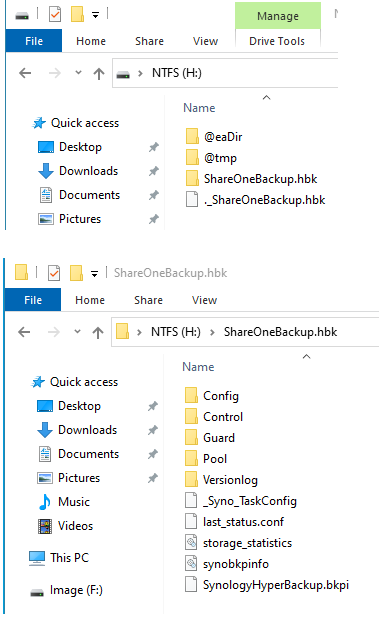 When the Hyper Backup task was created on this particular NAS, a folder called ShareOneBackup was created on the external drive. As the name implies, this ShareOneBackup is where all the various versions of files in a share on the internal drive are copied onto.


